HPC Job Submission
Create Template
Section titled “Create Template”- Upload or create Linux bash script file (.sh)
- Go to
Jobs→Job Composer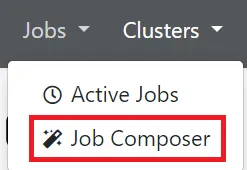
- Go to “Templates”

- Click “New Template”

- Fill-in the form, “Copy Path” function in “Files” can be used while user located the template file directory
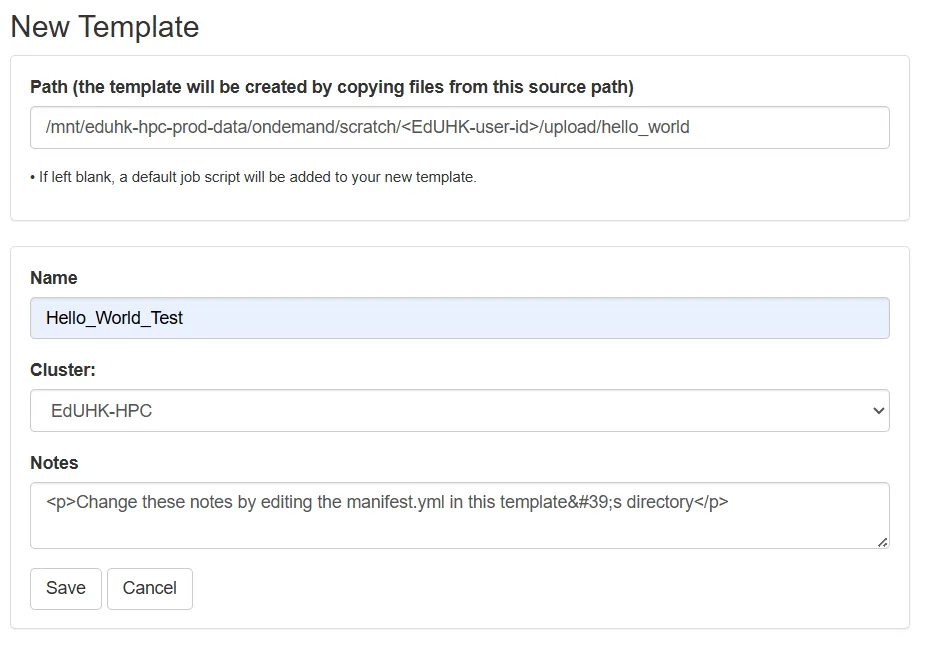
- Save the template, and which is available on the platform
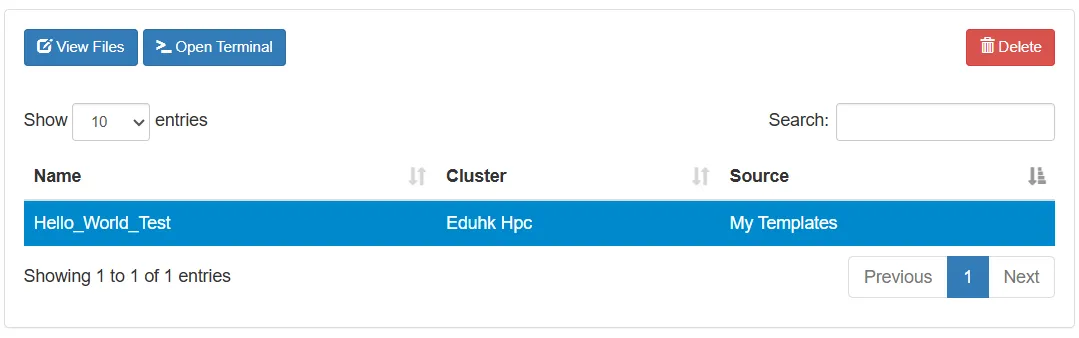
Create and Submit HPC Job via Web Interface
Section titled “Create and Submit HPC Job via Web Interface”HPC Job can be created while the template is available on the platform, follow the steps below to create:
- Upload or create Linux bash script file (.sh)
- Go to
Jobs→Job Composer - Go to “Jobs”

- Click “New Job” “From Template”
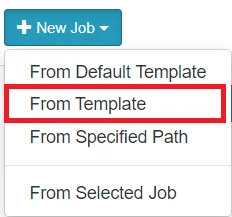
- Select the template created before, change parameters in form and click “Create New Job”
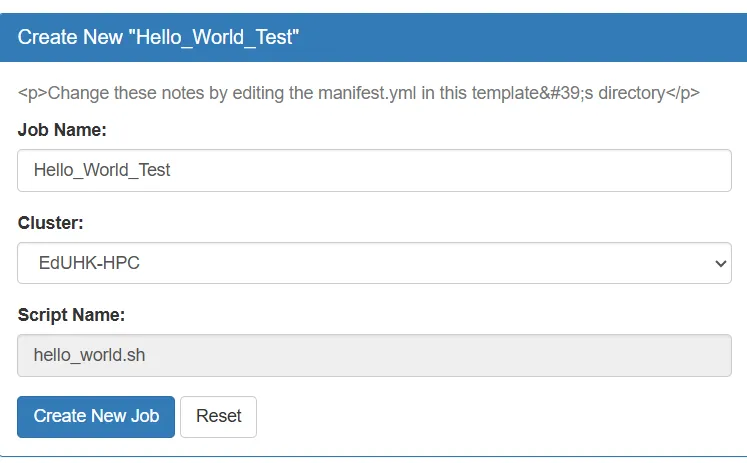
- Job created and available on the platform
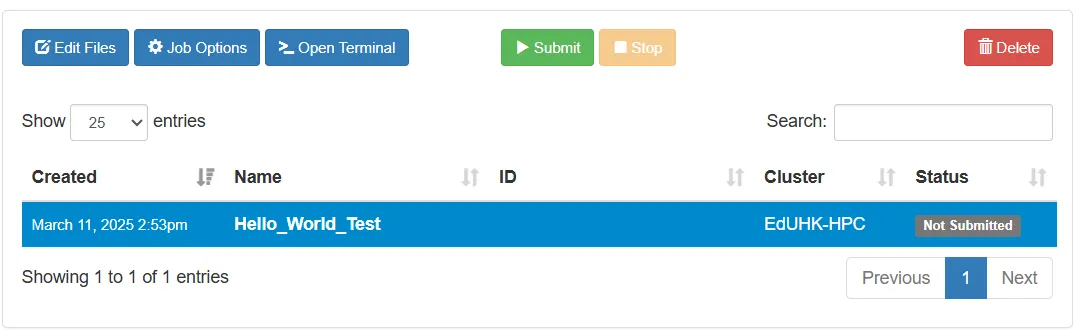
After created job, there are few steps required to success submit the job to HPC server to process:
- Go to
Jobs→Job Composer - Go to “Jobs”
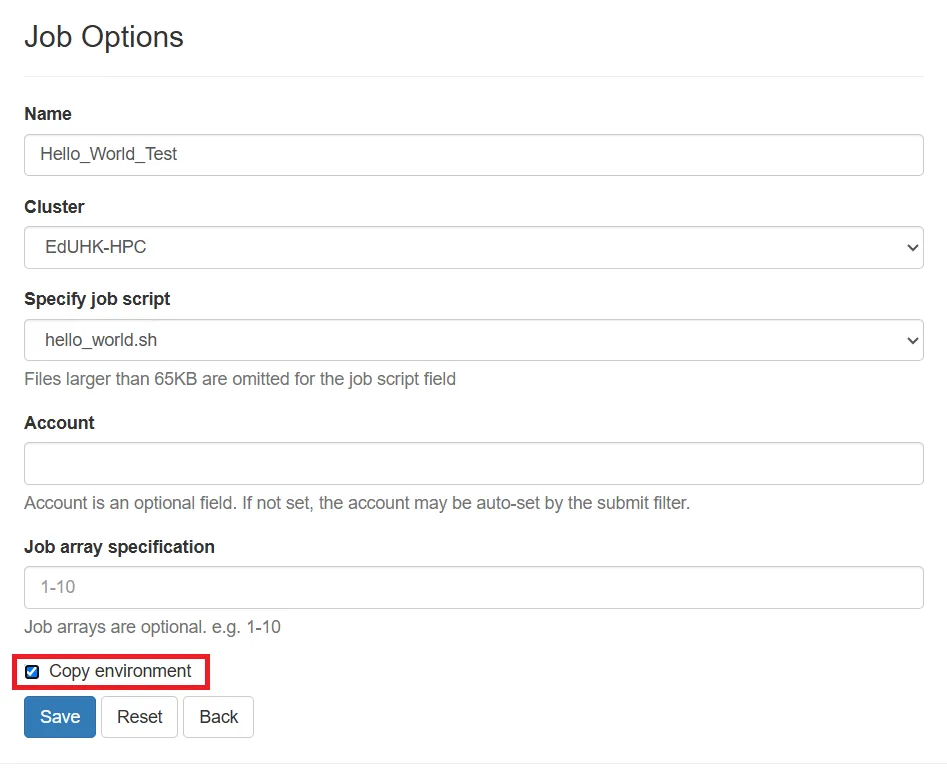
- Click “Job Options”

- Change Job Name (optional), select cluster to run the job, specify the job script and check the “Copy environment” checkbox (compulsory, it will lead to job fail if not checked), then click “Save”
- Scroll down the browser and preview the submit script, the script can be edited by clicking “Open Editor” (optional), remember to save the edited script in the editor.
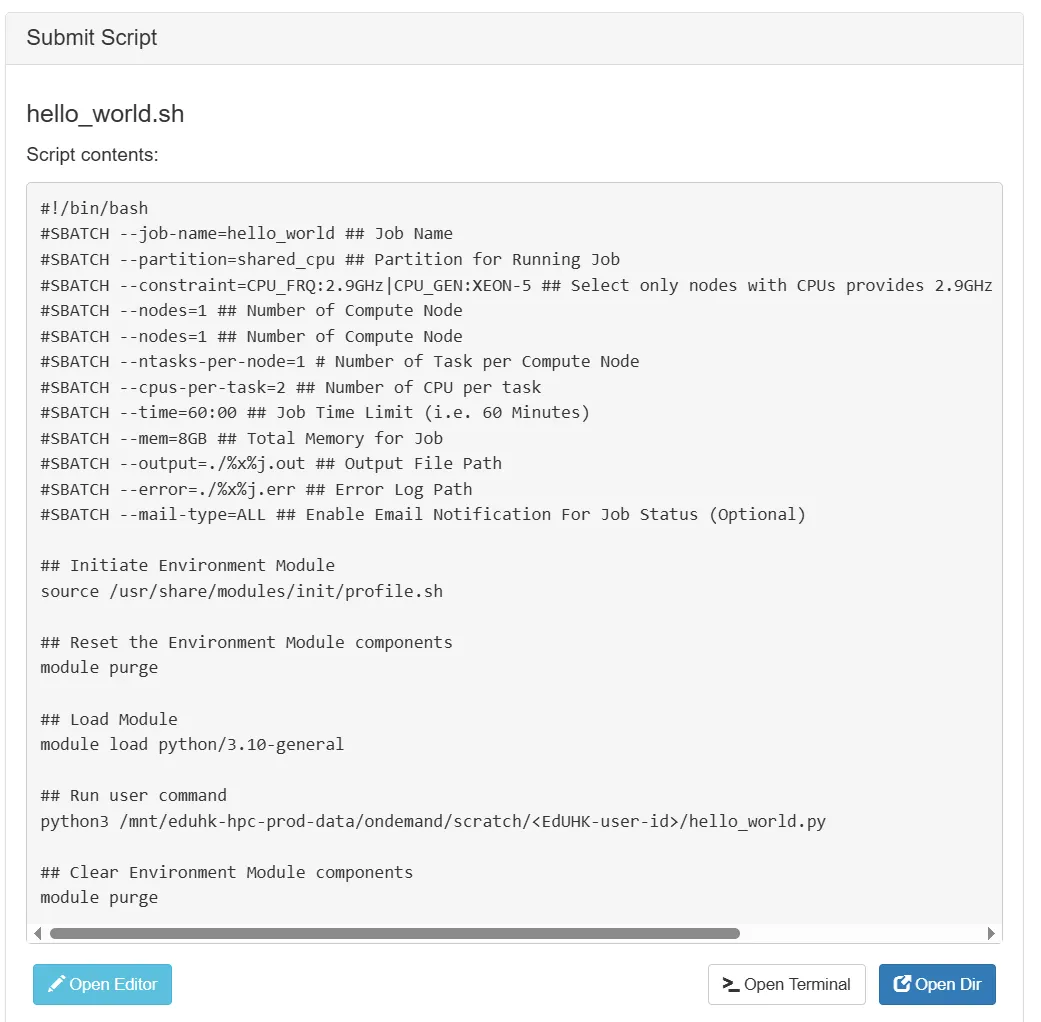
- Submit the script
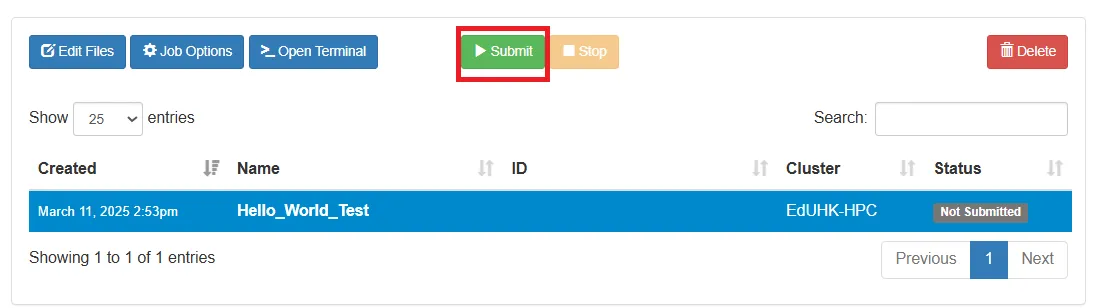
- The Job will be scheduled in queue and started while hardware resource available
- Wait for Job process complete
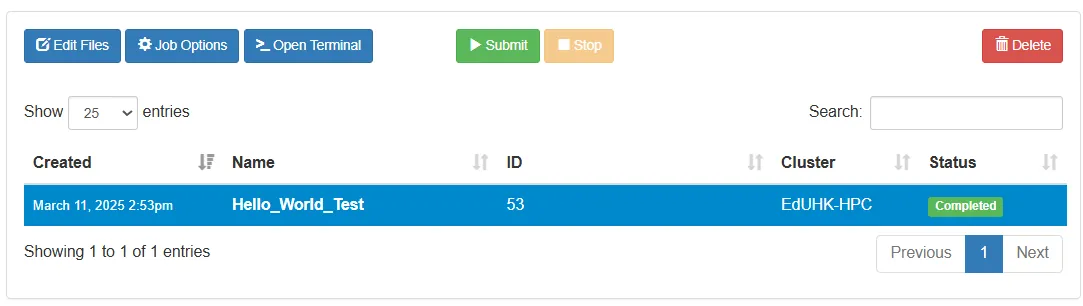
- Collect the output file and error file from the specified path in Job script