Monitor and Manage HPC Job
Active Jobs (Web Interface Feature)
Section titled “Active Jobs (Web Interface Feature)”Active Jobs is a component in Jobs feature for monitoring, viewing details and managing HPC Jobs submitted by user.
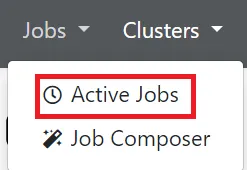
For accessing Active Jobs, go to Jobs -> Active Jobs
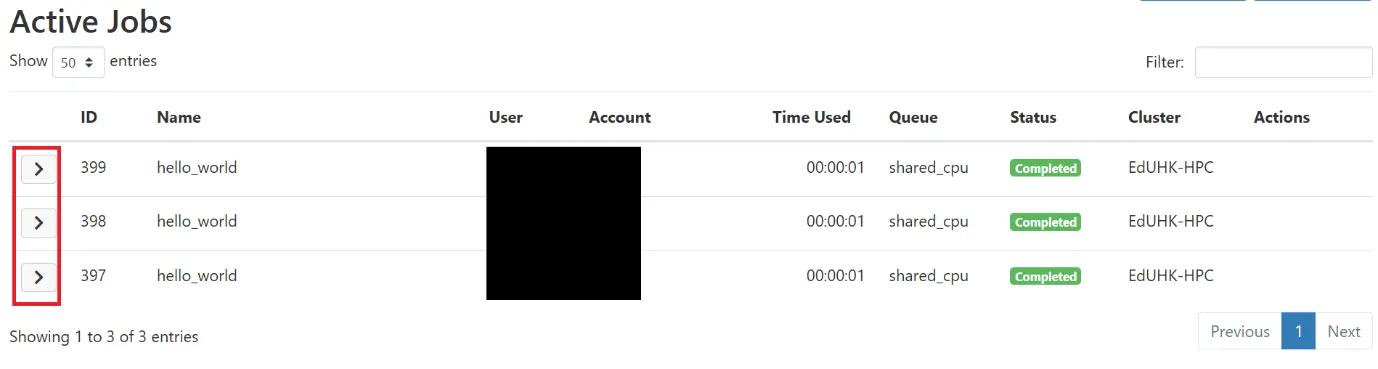
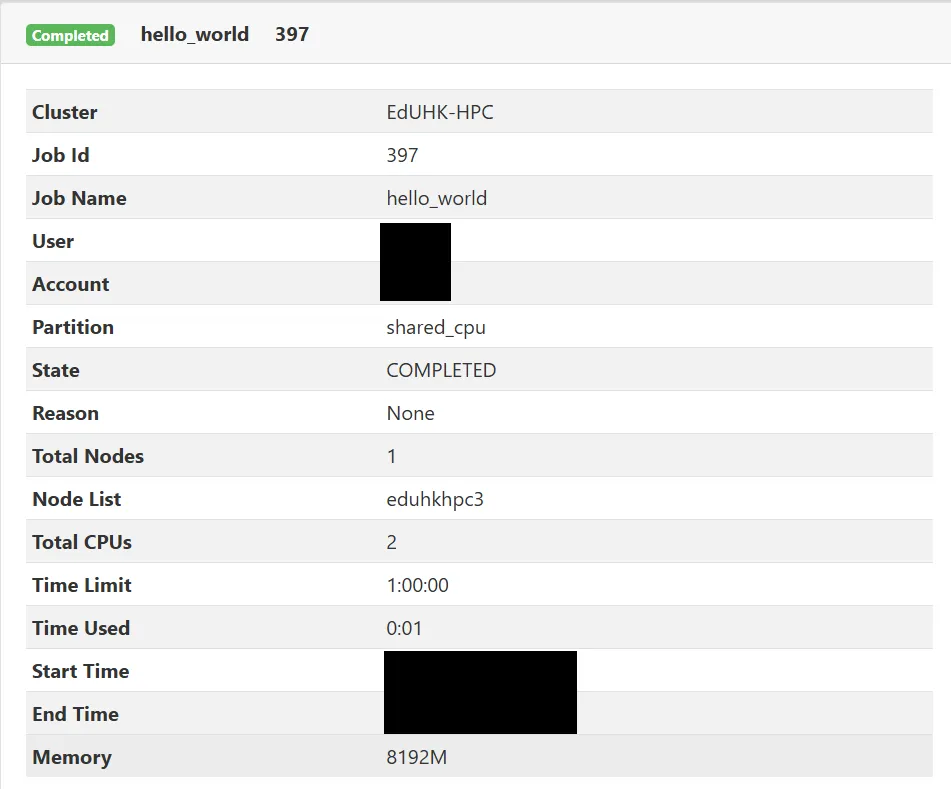
A summary of recent user submitted job will be provided in this page, click the right arrow to show more detail information about the job.
How to check Slurm job status?
Section titled “How to check Slurm job status?”To check Slurm job status, run below command in the SSH terminal (CLI), for tutorial in accessing CLI, please refer to Shell Access and Useful Command
$ squeue<br>How to cancel submitted Slurm job?
Section titled “How to cancel submitted Slurm job?”To cancel Slurm job, run below command in the SSH terminal (CLI), for tutorial in accessing CLI, please refer to Shell Access and Useful Command
$ scancel <slurm-job-id>How to check Slurm job (completed) efficiency?
Section titled “How to check Slurm job (completed) efficiency?”To check Slurm job efficiency, run below command in the SSH terminal (CLI), for tutorial in accessing CLI, please refer to Shell Access and Useful Command
$ seff <slurm-job-id>How to check current CPU and Memory usage for a Slurm job (Running)?
Section titled “How to check current CPU and Memory usage for a Slurm job (Running)?”To check current resources usage for a Slurm job (Running), run below command in the SSH terminal (CLI), for tutorial in accessing CLI, please refer to Shell Access and Useful Command
$ slurm_job_monitor slurm-job-idHow to check current GPU usage for a Slurm job (Running)?
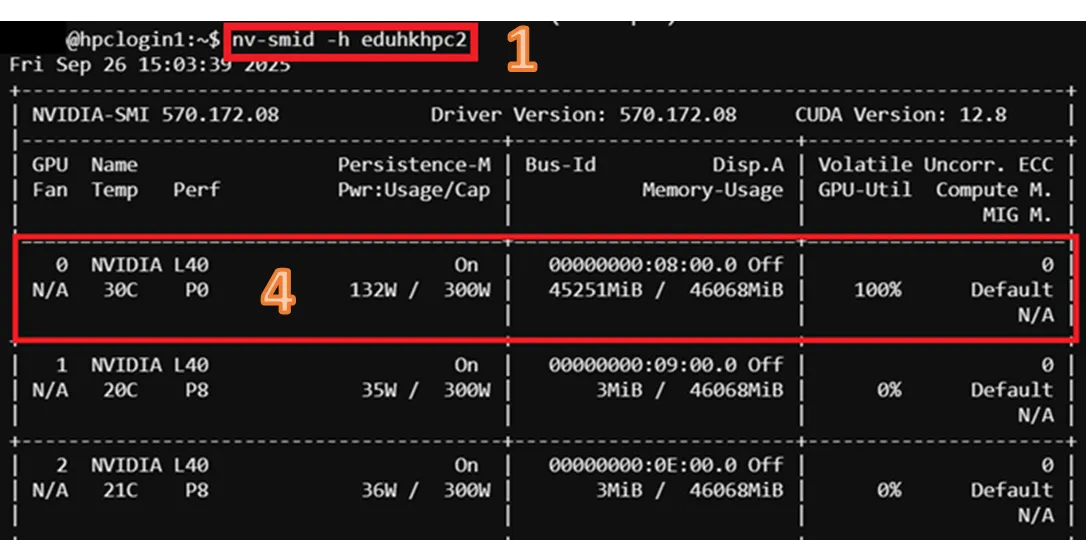
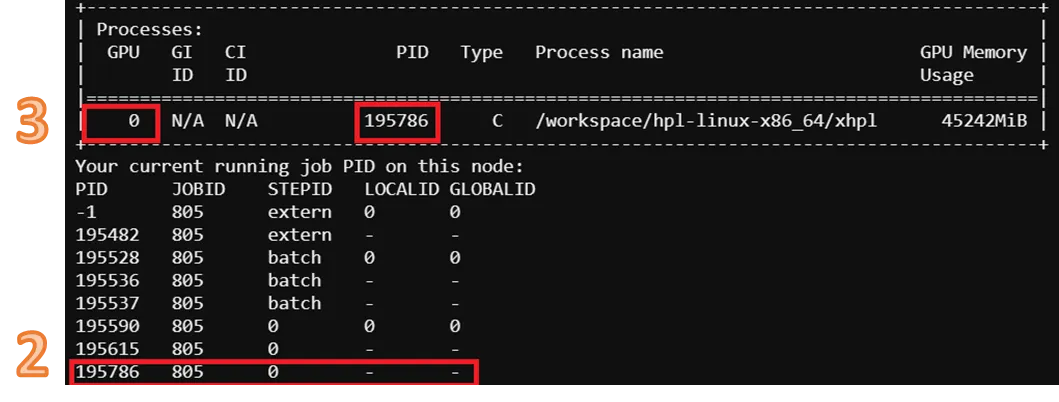
Section titled “How to check current GPU usage for a Slurm job (Running)?”- Check allocated node running Slurm job and job ID in “Active Job”
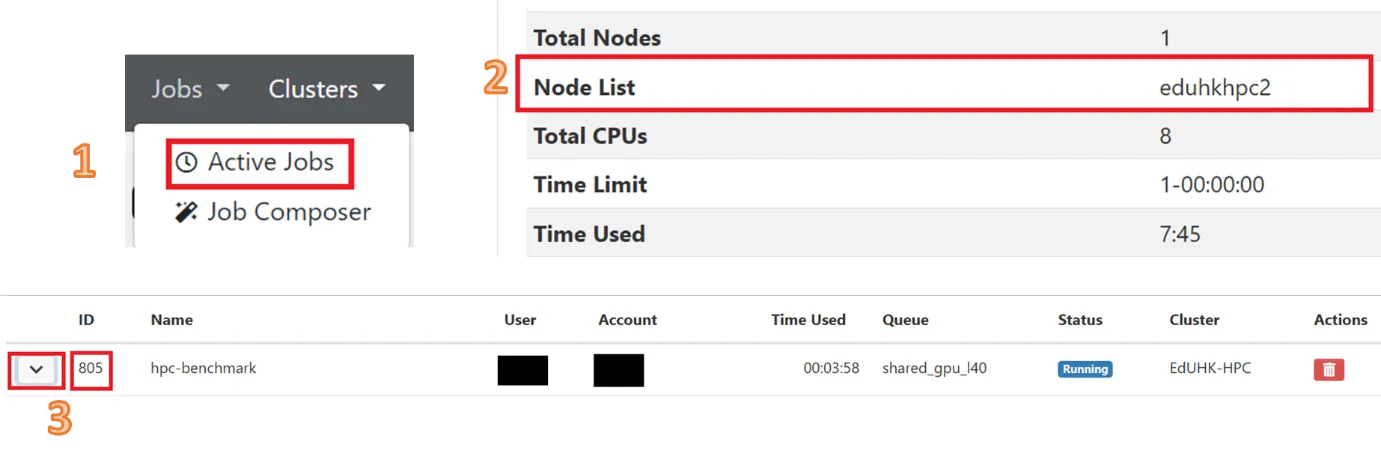
- Run below command in the SSH terminal (CLI), for tutorial in accessing CLI, please refer to Shell Access and Useful Command
$ nv-smid -h <hostname>- From the output, locate the GPU ID that processing Slurm job by PID
- Read the output with the corresponding GPU
How to Check Job History (Log)
Section titled “How to Check Job History (Log)”Run below command in the SSH terminal (CLI), for tutorial in accessing CLI, please refer to Shell Access and Useful Command
  #Check job history by user in a specific time range and show CPU, Memory and GPU allocation
  $ sacct –u $USER --starttime=<log start time> --endtime=<log end time> -X --format=JobID,JobName,Submit,Start,Elapsed,State,AllocCPUS,ReqMem,AllocTRES%30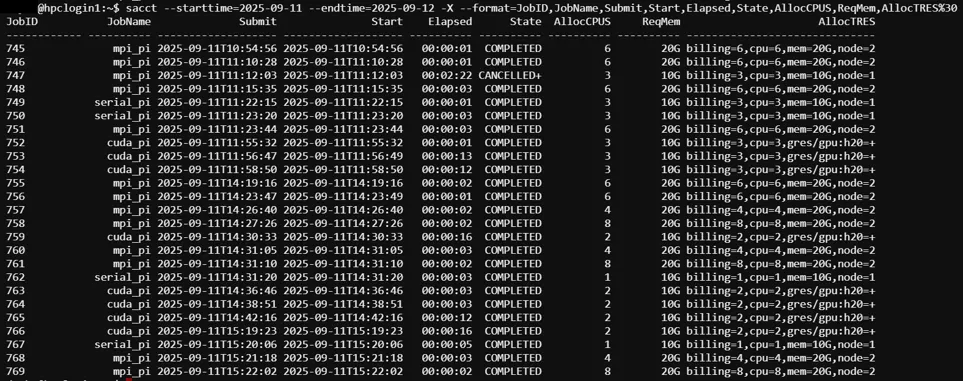
Scenario: Job Still in “Queued” Status for Long Time
Section titled “Scenario: Job Still in “Queued” Status for Long Time”Check Reason of Job “Queued” Status
$ squeue -u $USER
Reason List (Example), Full list please visit: SLURM Job Reason Codes
| Reason | Description |
|---|---|
| QOSMax* | A portion of the job request exceeds a maximum limit (e.g., PerJob, PerNode) for the requested QOS. |
| Resources | The resources requested by the job are not available (e.g., already used by other jobs). |
| Priority | One or more higher priority jobs exist for the partition associated with the job or for the advanced reservation. |
| QOSJobLimit | The job's QOS has reached its maximum job count. |
| QOSMaxCpuPerJobLimit | The CPU request exceeds the maximum each job is allowed to use for the requested QOS. |
| QOSMaxMemoryPerJob | The Memory request exceeds the maximum each job is allowed to use for the requested QOS. |
| QOSMaxGRESPerJob | The GRES request exceeds the maximum each job is allowed to use for the requested QOS. |