HPC Job Template
Creating HPC job based on template can benefits in rapid Job deployment, user can upload a Linux bash script file (.sh) or create a brand new .sh file on scratch or its sub-directory with specified format and used the file as template (A simple Slurm Job template created for each new user by default, path: /home/<EdUHK User ID>/job_template)
Example for HPC Job using Environment Module (Using CPU only)
Section titled “Example for HPC Job using Environment Module (Using CPU only)”#!/bin/bash#SBATCH --job-name=hello_world ## Job Name#SBATCH --partition= shared_cpu ## Partition for Running Job#SBATCH –-constraint=CPU_FRQ:2.9GHz|CPU_GEN:XEON-5 ## Select only nodes with CPUs provides 2.9GHz Clock or 5th generation XEON CPUs#SBATCH --nodes=1 ## Number of Compute Node#SBATCH --ntasks-per-node=1 # Number of Task per Compute Node#SBATCH --cpus-per-task=15 ## Number of CPU per task#SBATCH --time=60:00 ## Job Time Limit (i.e. 60 Minutes)#SBATCH --mem=60GB ## Total Memory for Job#SBATCH --output=./%x%j.out ## Output File Path#SBATCH --error=./%x%j.err ## Error Log Path#SBATCH --mail-type=ALL ## Enable Email Notification For Job Status (Optional)
## Initiate Environment Modulesource /usr/share/modules/init/profile.sh
## Reset the Environment Module componentsmodule purge
## Load Modulemodule load python/3.10
## Export User Local Package Path (If Extra Python Packages Installed)export PATH="/home/$USER/.local/bin:$PATH"
## Run User Commandpython3 /scratch/$USER/hello_world.py
## Clear Environment Module componentsmodule purgeExample for HPC Job using user’s environment created by Anaconda (Using CPU only)
Section titled “Example for HPC Job using user’s environment created by Anaconda (Using CPU only)”#!/bin/bash#SBATCH --job-name=hello_world ## Job Name#SBATCH --partition=shared_cpu ## Partition for Running Job#SBATCH –-constraint=NO_GPU&CPU_SKU:6542Y ## Select only nodes with Intel Xeon Gold 6542Y CPU chips and no GPU installed#SBATCH --nodes=1 ## Number of Compute Node#SBATCH --ntasks-per-node=1 # Number of Task per Compute Node#SBATCH --cpus-per-task=15 ## Number of CPU per task#SBATCH --time=60:00 ## Job Time Limit (i.e. 60 Minutes)#SBATCH --mem=60GB ## Total Memory for Job#SBATCH --output=./%x%j.out ## Output File Path#SBATCH --error=./%x%j.err ## Error Log Path#SBATCH --mail-type=ALL ## Enable Email Notification For Job Status (Optional)
## Initiate Environment Modulesource /usr/share/modules/init/profile.sh
## Reset the Environment Module componentsmodule purge<br>
## Load Anaconda Modulemodule load anaconda
## Run user command (“conda activate” command is not available in script, use absolute path for the environment instead, an ${CONDA_ENV_PATH} variable is available for representing “/home/$USER/.conda/envs” path)
${CONDA_ENV_PATH}/<environment name>/bin/python3 /scratch/$USER/hello_world.pyExample for HPC Job using Singularity container (using GPU resources)
Section titled “Example for HPC Job using Singularity container (using GPU resources)”#!/bin/bash<br>#SBATCH --job-name=hello_world ## Job Name#SBATCH --partition=shared_gpu_h20 ## Partition for Running Job#SBATCH –-constraint=CPU_MNF:INTEL&GPU_GEN:HOPPER ## Select only nodes with Intel CPUs and HOPPER architecture GPU (used with --gres)#SBATCH --nodes=1 ## Number of Compute Node#SBATCH --ntasks-per-node=1 # Number of Task per Compute Node#SBATCH --cpus-per-task=10 ## Number of CPU per task#SBATCH --time=60:00 ## Job Time Limit (i.e. 60 Minutes)#SBATCH --mem=40GB ## Total Memory for Job#SBATCH --gres=gpu:h20:2 ## Number of GPUs (i.e. Request 2 x H20 GPUs)#SBATCH --output=./%x%j.out ## Output File Path#SBATCH --error=./%x%j.err ## Error Log Path#SBATCH --mail-type=ALL ## Enable Email Notification For Job Status (Optional)
## Initiate Environment Modulesource /usr/share/modules/init/profile.sh
## Reset the Environment Module componentsmodule purge
## Load Singularity Modulemodule load singularity
## Run user command in container (Python container – python.sif as example)singularity run --bind /scratch/$USER /scratch/$USER/python.sif python3 /scratch/$USER/hello_world.pyCreate Template (Web Interface Feature)
Section titled “Create Template (Web Interface Feature)”- Upload or create Linux bash script file (.sh)
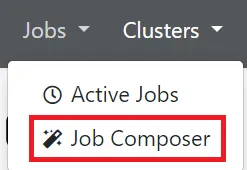
- Go to “Jobs” “Job Composer”
- Go to “Templates”

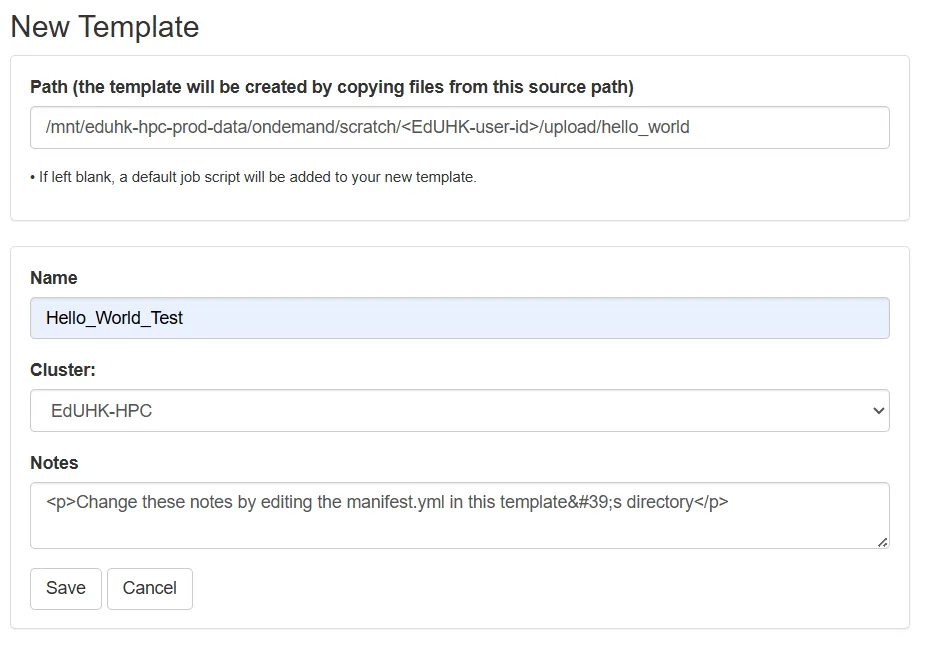
- Click “New Template”

- Fill-in the form, “Copy Path” function in “Files” can be used while user located the template file directory
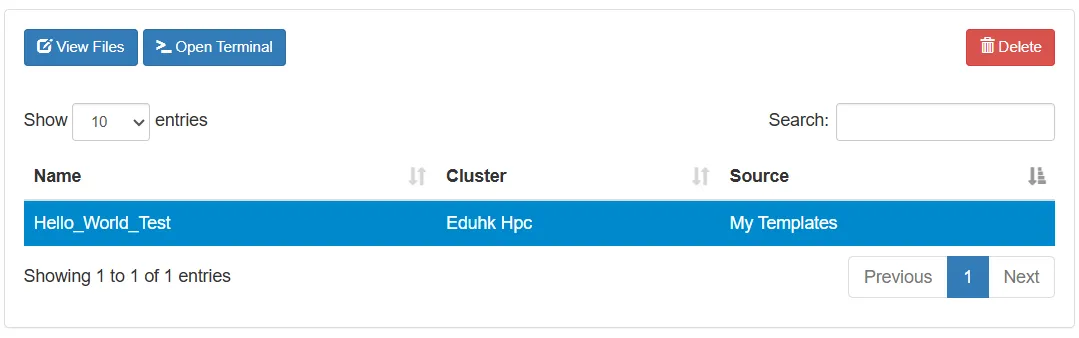
- Save the template, and which is available on the platform